View Simulink Models in CANoe Without Simulink License
CANoe Quick Tip

When integrating a Simulink model into CANoe, you often find yourself in a situation where models were created and provided by others. As a result, the models are black boxes, and you cannot see what is inside.
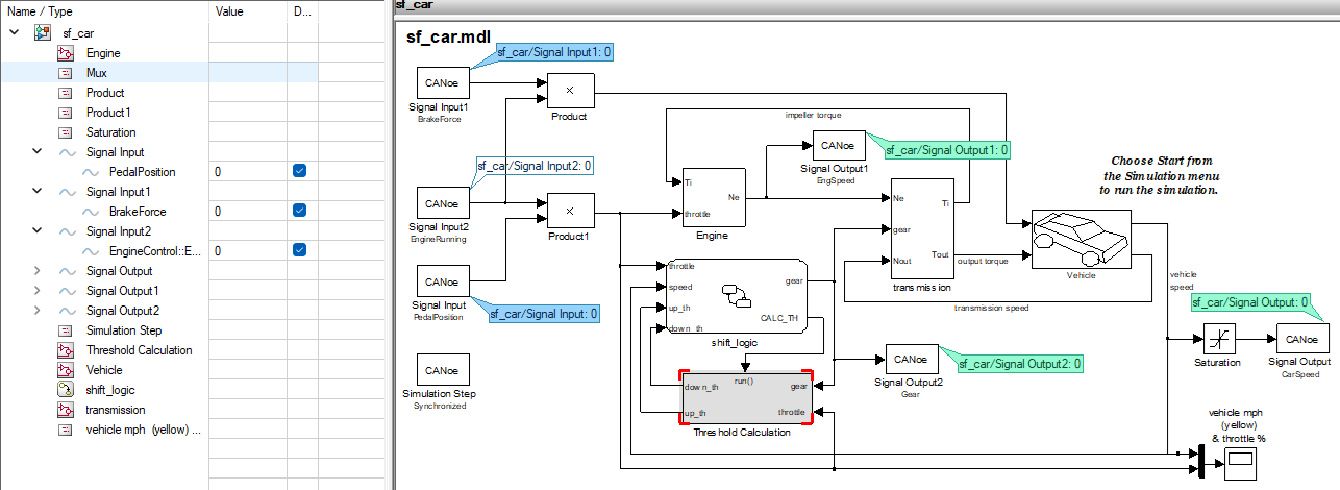
However, with CANoe's integrated Model Viewer, Simulink models can be made visible and analyzed without a Simulink license.
What Can You Do With It? | What Problems Does It Solve?
With the Model Viewer, the content of the model can be made visible, and you can even navigate through the model structure. Furthermore, it is possible to select parameters, which you can then use in the analysis windows, in panels or your test implementations.
This all works without recompiling the model which could be very time-consuming. Also, you don’t need to have a MATLAB/Simulink license at hand in order to use this function.
Where Can You Find This Function In CANoe? | How to Start the Process?
This function has to be activated when generating code from the Simulink Model.
In Simulink, in the Model → Modelling Settings navigate to the code generation section. When you choose “cn.tlc” (CANoe) as the target you will see the CN code generation options. Here please tick the checkbox “Generate CANoe Model Viewer description file”. Also choose “Generate vModule file” and now generate the code.
In CANoe just add the vModule to the Simulation Setup or the Communication Setup. You will see an additional entry in the menu to display the model. This also works if you have more than one model.
Related CANoe Topics