Synchronization of Analysis Windows Using the Example of Smart Charging
CANoe Quick Tip

The CANoe function Window Synchronization synchronizes all windows such as Trace, Graphics, and State Tracker during the analysis of completed measurements. All windows will be graphically aligned to a single reference point.
What Can You Do With This Function or Workflow? What Problems Does It Solve?
Imagine you are conducting a simulation or conformance test on your electric vehicle (EV) or charging station (EVSE) and encounter an issue. For example, the charging process may stop unexpectedly, or the test might fail. Typically, the investigation begins with one of the available windows in CANoe, such as the Trace Window or Test Report Window. When the point of failure is identified, Window Synchronization enables automatic synchronization of all other windows to this reference point.
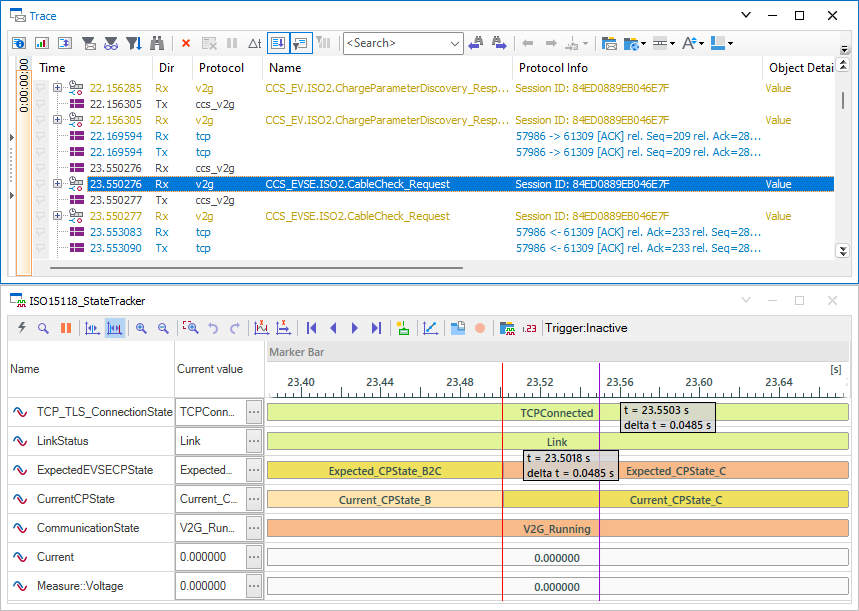
This function streamlines your process and assists you with various analysis tasks. For example, you can determine the timing characteristics of the transition from CP state B to C and the occurrence of the first CableCheck.Req, as illustrated in the screenshot.
Where Can You Find This Function in CANoe? | How to Start the Process?
Window Synchronization should be enabled after starting CANoe. The activation button is located in the "Home" section of the ribbon menu under "More".

To align all windows with a designated reference point within a specific window, position the mouse pointer over the chosen point and click.
Related CANoe Topics