Evaluate Content From Signal-Based and Frame-Based Logging Files Together
CANoe Quick Tip

Offline mode and import enable the loading of logging files. By combining these two features, content from signal-oriented and message-oriented logging files can be evaluated in the same configuration. All analysis windows can then be used for time-synchronized evaluation.
What Can You Do With It? | What Problems Does It Solve?
In development projects, it may be necessary to record measurement data both signal-based and frame-based. Modern logging formats such as MF4 support storing both types of data within a single file.
To perform a time-synchronized evaluation, either multiple files must be processed, or different base information must be considered.
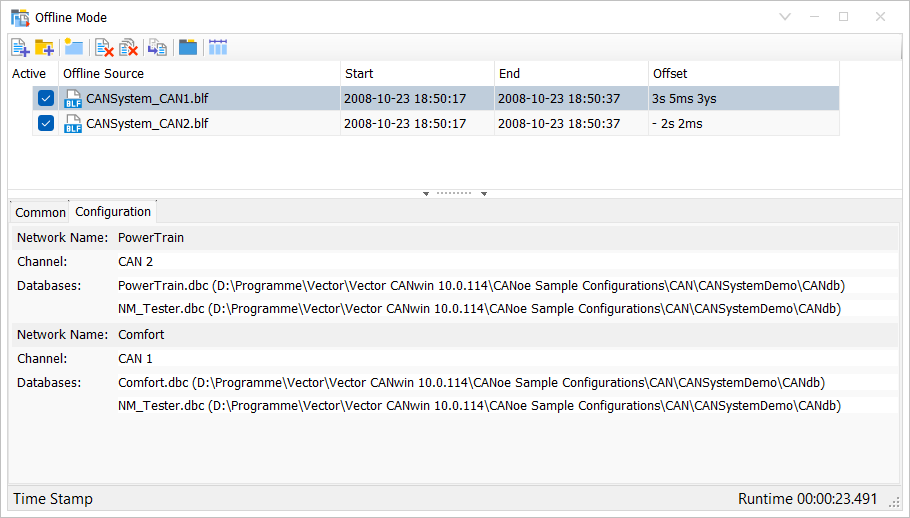
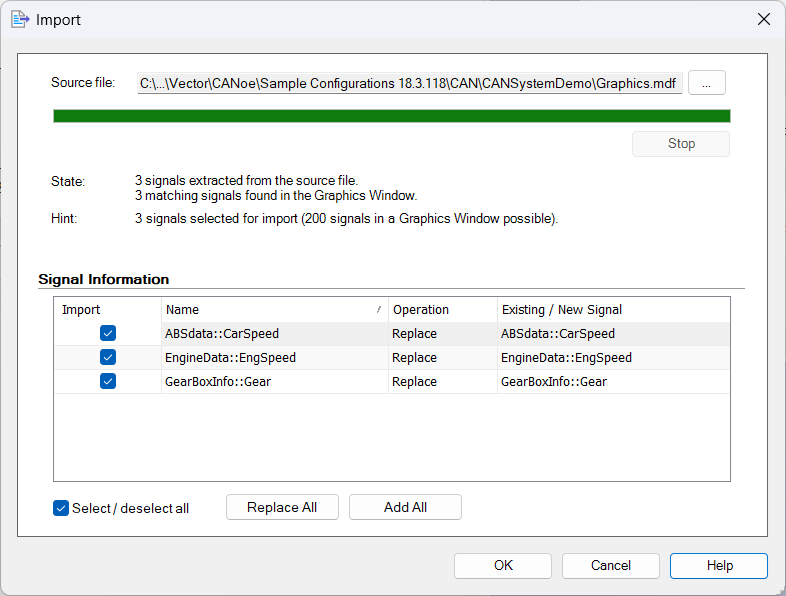
The tool CANoe offers an efficient solution: by combining offline mode with import functionality, you can read and interpret network communication and additionally integrate signal traces (see screenshots).
Thanks to the ability to align timestamps, evaluation on a shared time base is possible. Furthermore, adjusting time traces via a time offset allows for precise synchronization.
Where Can You Find This Function In CANoe? | How to Start the Process?
Start by opening the Offline Mode window, available via the Analysis ribbon. In the Offline Sources list, you can add individual files or entire directories.
If the Offset column is not visible, you can enable it by right-clicking the column header and selecting it from the field selection menu. Use the Offset column to define the required time shift for each file.
Offline Mode supports only message-oriented logging formats. To interpret the contents, a description file (e.g., DBC, ARXML) is required for each logging file. These files are linked as usual via the simulation setup on the respective channels.
If you already know which symbols (e.g., signals, diagnostics) you want to analyze, you can add them directly to the desired analysis windows.
Switch to Offline Mode via the Home ribbon and start the measurement using the yellow lightning bolt button.
Depending on the file size, the loading process may take some time. Once loading is complete, all information that can be interpreted from messages will be available in the analysis windows.
Signal-based information is not read automatically. To include it in the configuration:
- Right-click inside the drawing area of a Graphics Window
- Select “Import” from the context menu
- Choose a file and add or replace the desired signals
A time offset can also be specified for signal traces. The Offset column can be added to the legend by right-click on the column header and selecting it from the field menu.
Use the “Synchronize Windows” function from the Home ribbon. In the Graphics window, for example, you can place a measurement marker to jump to a specific timestamp, while the views in other analysis windows adjust accordingly.
Related CANoe Topics