Basic Diagnostics Simulation of ECUs for Test-The-Tester or Gateway Testing Purposes
CANoe Quick Tip

The Diagnostic Feature Set (DFS) of CANoe provides a very easy way of simulating Electronic Control Units (ECUs) at the diagnostic level. This is very useful when:
- creating automated diagnostic tests for an ECU if the real hardware ECU is not available
- testing a real hardware gateway ECU regarding its diagnostics routing functionality
What Can You Do With It? | What Problems Does It Solve?
To simulate the diagnostic behavior of an ECU, besides the physical layer at least two additional communication layers are necessary: the transport protocol (TP) and the application (here: diagnostic) layer. The TP depends on the network used (CAN, LIN, FlexRay, automotive Ethernet) and the diagnostic layer depends on the services which are defined in the corresponding diagnostic description. Such a diagnostic description also contains communication parameters parametrizing the TP and the diagnostic layer.
The built-in diagnostic channel of CANoe not only implements those layers for the diagnostic tester in CANoe. You have probably already used these with the Diagnostic Window and its features: Diagnostic Console, Fault Memory, Variant Coding, ECU Control and OBD. You can also activate the simulation side. All you need to do is to add a diagnostic description, activate one single checkbox and select the simulation node which should be used for simulation.
Once activated, the simulation node will respond to all diagnostic requests with UDS-compliants responses, filling the diagnostic parameters of the responses with their default values. For this behavior, no single line of CAPL (“Communication Access Programming Language“ by Vector) needs to be written. But if you do, you can even customize the content of the diagnostic responses depending on how realistic you need the simulation to be.
Where Can You Find This Function In CANoe? | How to Start the Process?
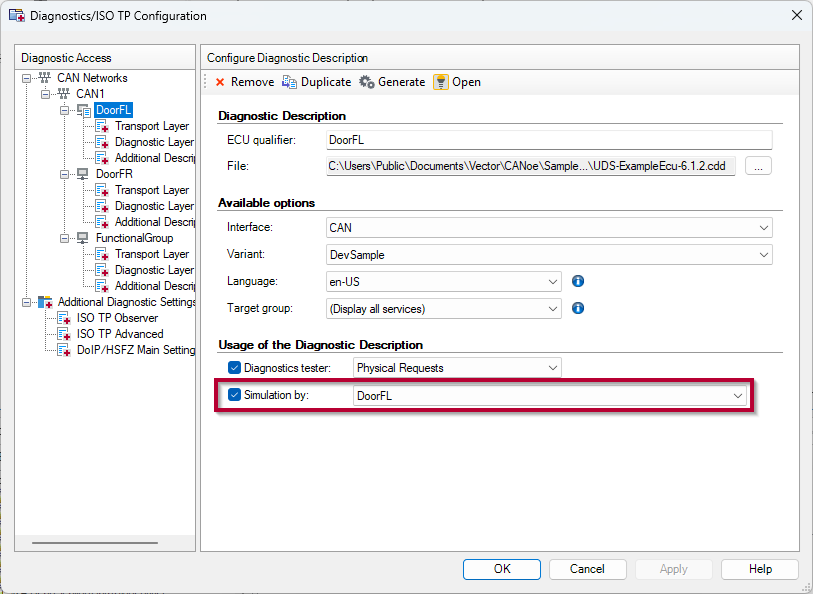
Open the “Diagnostic/ISO TP” configuration dialog of CANoe and add a diagnostic description to any network. If you do not have a diagnostic description, you may also add a Basic Diagnostic Description, specifying the service definition containing the diagnostic parameters and their data types directly in the Basic Diagnostic Editor of CANoe.
Under “Usage of the Diagnostic Description”, simply activate the check box “Simulation by” and select the simulation node you want to use (figure):
To customize the diagnostic responses you can also add some CAPL code to the simulation node. A simple CAPL handler for returning the serial number of an ECU might look like this:
on diagRequest DoorFL.SerialNumber_Read
{
diagResponse this resp;
diagSetParameter(resp, "SerialNumber", 1234567);
diagSendPositiveResponse(resp);
}
Related CANoe Topics