Customizing Panels by Using Custom-Built Controls
CANoe Quick Tip

The Panel Designer Toolbox offers various controls to create individual panels for different use cases. For those who, beyond these options, seek a distinctive and tailored solution, the ability exists to create their own controls and include them in their panels via the Panel Control Plugin API.
What Can You Do With This Function or Workflow? What Problems Does It Solve?
Custom-built controls can be both creative and free – only limited by the functionalities of WPF – or plain and pragmatic, inspired by existing controls in CANoe. Once created, custom-built controls appear in the Toolbox of the Panel Designer – directly below the Vector Standard Controls. They can be assigned to the panel and configured just like any other control. During runtime, custom-built controls can equally well display and modify values of numeric symbols in CANoe.
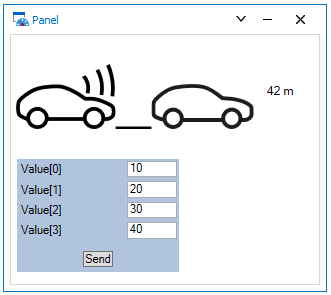
The examples below show two controls – developed as plugin controls. The cars can be used as sliders to visualize the distance between two vehicles, whereas the other control provides the opportunity to send different values at the same time.
Where Can You Find This Function in CANoe? | How to Start the Process?
First of all, you need a good idea of your future control. Find the answers to the following questions:
What function is the control supposed to fulfill? What should it look like? Which symbol or data types need to be assigned? What properties need to be configured? Is there an individual icon representing the control in the toolbox?
Then you can start to create a .NET assembly for your Panel Plugin Control. To achieve that, you will find tips and examples in the CANoe Help.
Related CANoe Topics