Create a Digital Twin of Any CANopen Device or Network
CANoe Quick Tip

With the CANoe Option CANopen, you can easily create a digital twin of any CANopen device or CANopen network. You can use it to develop automated tests without occupying the real system.
What Can You Do With This Function/Workflow? What Problems Does It Solve?
You can create a digital twin of any CANopen device or CANopen network by reading its configuration and creating a CANoe simulation out of it. With this CANoe simulation, you don’t need access to the real CANopen system while you develop tests.
Where Can You Find This Function in CANoe? | How to Start the Process?
The CANopen Configuration window of CANoe provides a scan functionality. Just create an empty CANoe configuration, connect to real CANopen devices, and start the scan:
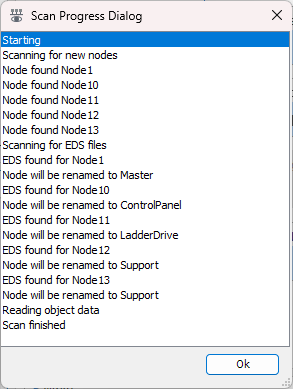
The scan will detect all devices and read out their configuration such as PDO and heartbeat settings.
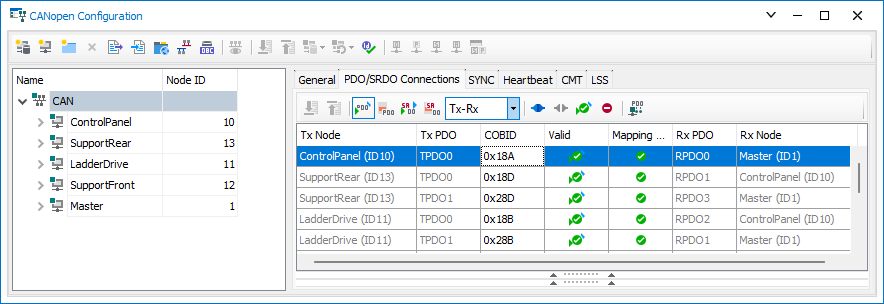
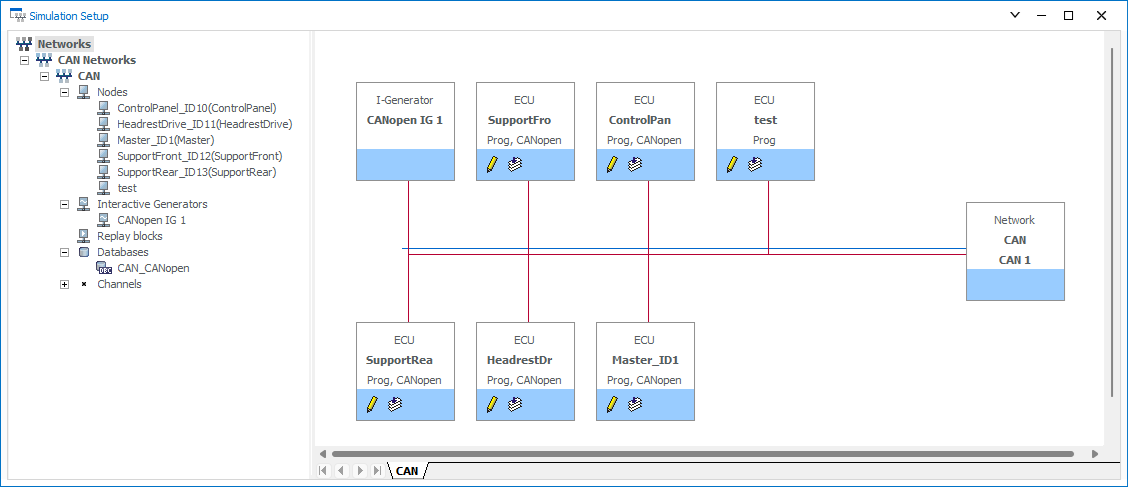
Click on the Create Simulation Nodes button in the toolbar and it will add nodes to the Simulation Setup which send the same CANopen messages that the real system will send. Based on this model you can develop your CANopen tests.
Related CANoe Topics