Boost Performance Through Early Filtering of Events
CANoe Quick Tip

When you must deal with huge amounts of measured data, you can significantly improve performance by using the early event filtering of CANoe. You can still log all events and analyze them later.
What Can You Do With It? | What Problems Does It Solve?
Sometimes you are using CANoe to test or analyze a configuration consisting of multiple buses with high data rates. If you try to display all that data in realtime in one or more trace windows, panels or other analysis windows, you may find that your computer isn’t fast enough to process it all, making the user interface slow or leading to not all data being shown.
But usually, you don’t really need all that data available in realtime. With the early event filtering feature of CANoe, you can concentrate on the data which is the focus of your current work, removing other data from the online analysis and thus greatly improving the performance.
Don’t worry that the data would be lost: you can still log it into a file and later analyze it in the CANoe Offline Mode at your leisure.
Where Can You Find This Function In CANoe? | How to Start the Process?
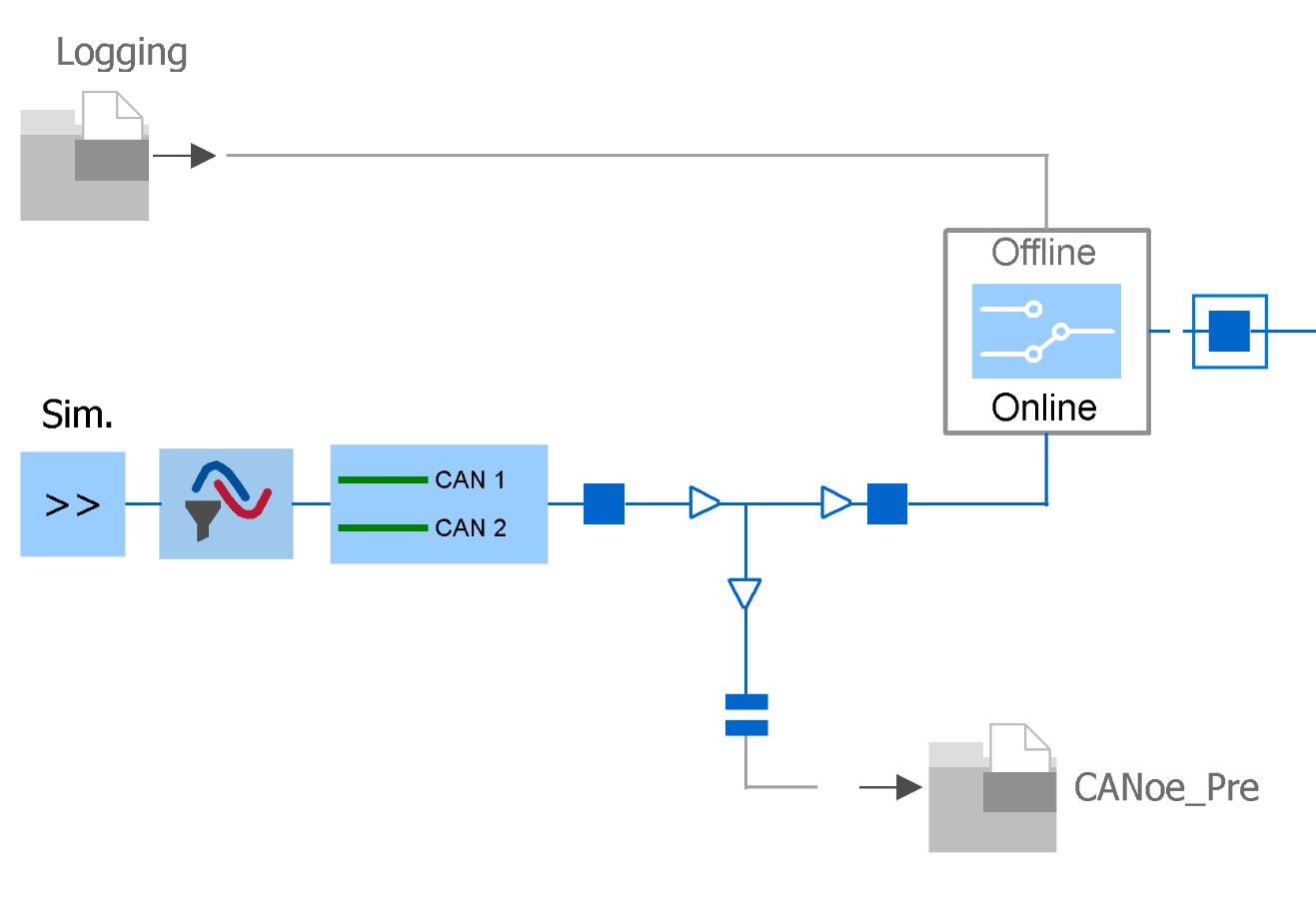
Activate the early event filtering feature in the Options dialog with Measurement → Performance → Throughput → Early filtering of events. Then the Measurement Setup will show an additional branch (see figure).
Use the filter blocks to remove System Variable events or events from specific channels. Deactivate the break in the downward path to log all unfiltered events to a file. Insert additional filter blocks after the downward path if you want to log into some of the events but still filter them out before they are processed by the following parts of the Measurement Setup, i.e., the analysis windows.
Related CANoe Topics