Be Independent of Screen Sizes and Scaling: The Dashboard Desktop Layout
CANoe Quick Tip

The new dashboard desktop layout in CANoe increases your flexibility. It automatically customizes the window layout to different screen sizes and resolutions and ensures that all content remains clearly visible and accessible – no matter how you resize the main window.
You can easily focus on a single window and temporarily enlarge it to see important details quickly and clearly.
What Can You Do With This Function or Workflow? What Problems Does It Solve?
Thanks to the dashboard desktop layout, the window arrangement in CANoe automatically customizes itself to different screen sizes and scaling settings. This ensures optimal use of available space – even when resizing the main window, all content remains clearly visible and fully accessible.
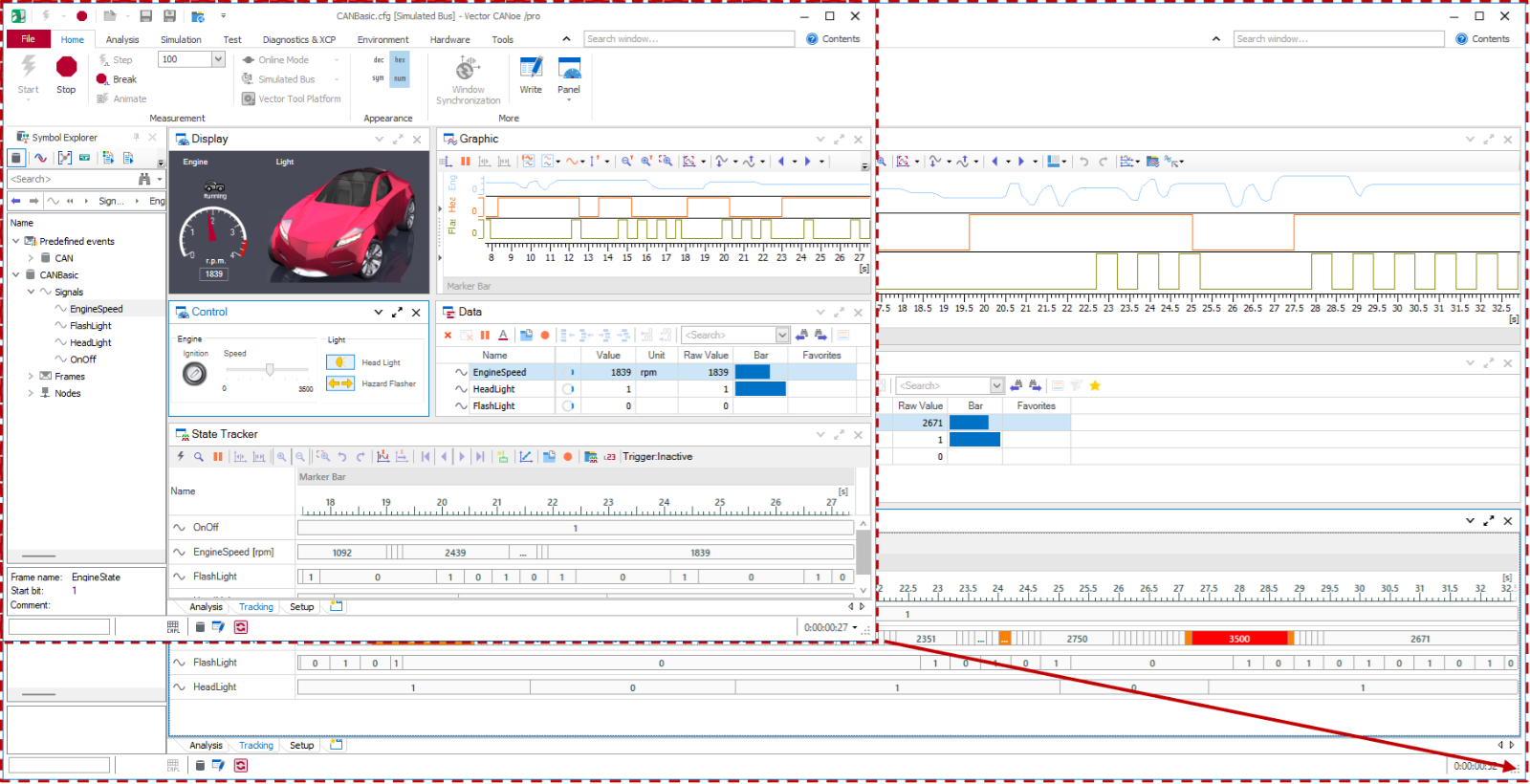
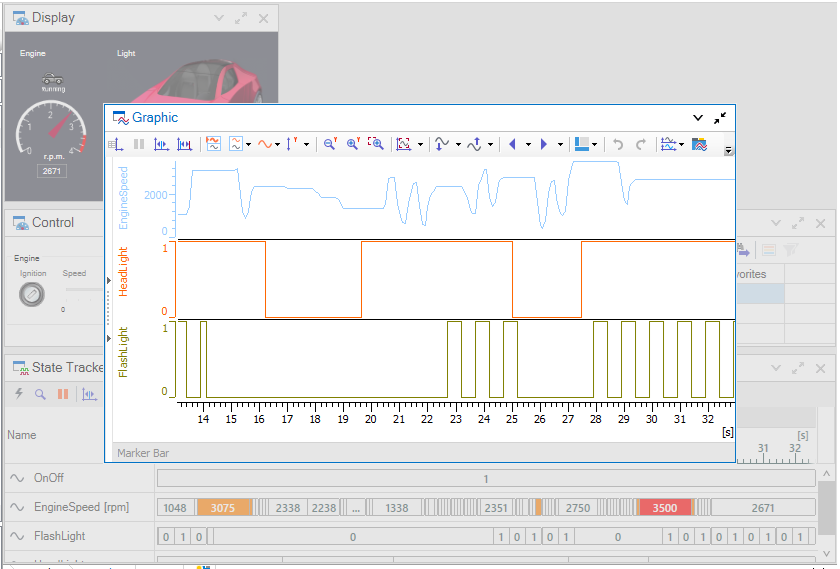
Additionally, you can focus specifically on individual content elements at any time without losing the overview. A single window can be easily brought into focus temporarily. It is displayed enlarged, so important details are quickly and clearly visible.
Where Can You Find This Function in CANoe? | How to Start the Process?
The dashboard desktop layout can now be easily set centrally for the entire configuration – conveniently via the backstage view. Existing configurations can also be converted here with just a few clicks.
The feature that allows a single window to be temporarily enlarged in the foreground is now an automatic part of the new dashboard desktop layout. By double-clicking the title bar, the window is enlarged and automatically brought into focus. This way, important details can be quickly and clearly recognized. When needed, it smoothly returns to the layout with a single click – for maximum flexibility and efficient work
Related CANoe Topics